Publish episodes
Publish an episode
An episode is a draft until you publish it. A draft is not in the feed.
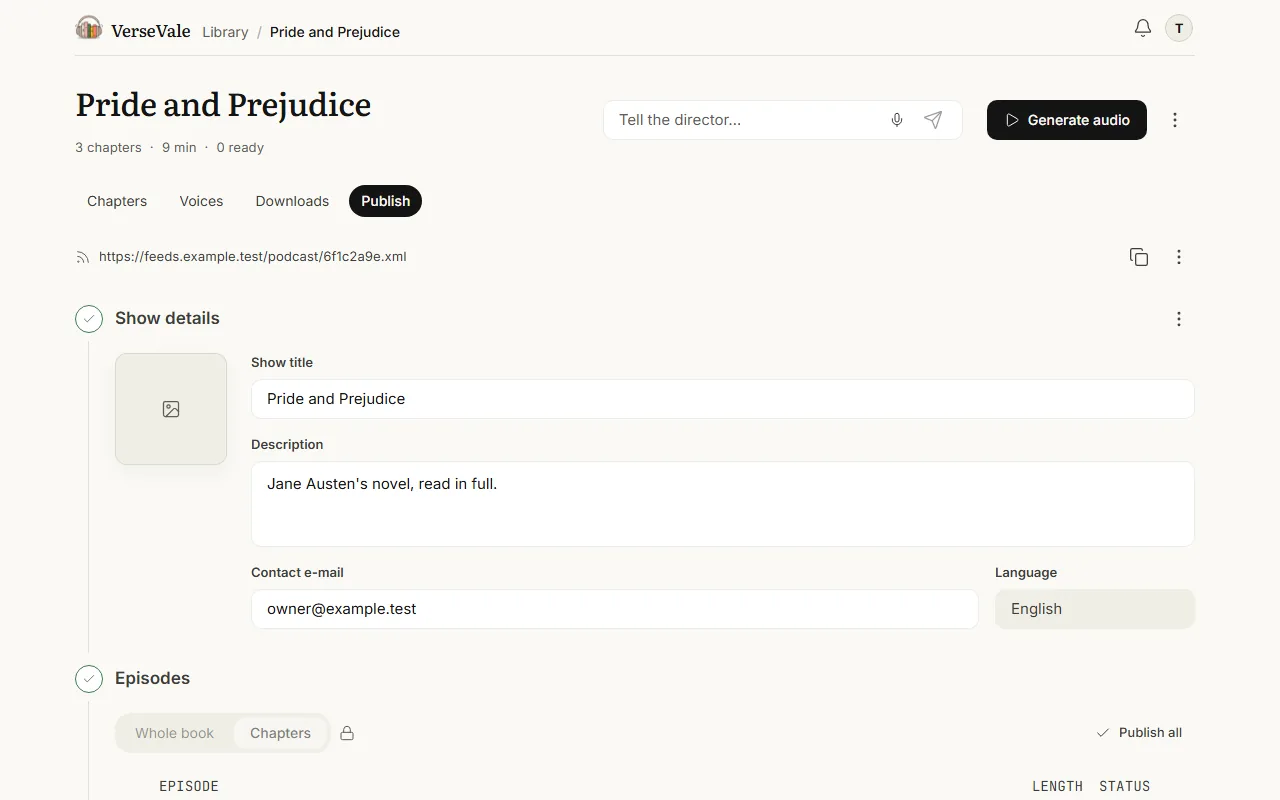
Check its status
The Publish tab shows Draft, Needs audio, Published in feed, On Spotify, or Not on Spotify yet.
Open the catalog links
The Publish tab lists Apple Podcasts, Podcast Index and Amazon Music under the Spotify row.
Catalogs
Click a catalog. The feed link is copied and the catalog’s add page opens: paste the link there. Catalogs take the show only after its first episode is published, so the catalog items stay off until then.
Apple Podcasts
Sign in
Sign in to Apple Podcasts Connect with an Apple ID.
Add a show by RSS
Choose the option to add a show from an RSS feed, then paste the feed link you copied.
Wait for review
Apple reviews the show before it is listed. This takes a few days.
Podcast Index
Sign in
Sign in to podcastindex.org with your account. Create one first if you have none.
Add a show by RSS
Choose the option to add a show from its RSS feed, then paste the feed link you copied.
Check the listing
Once accepted, the show appears in the directory. You can also send the feed from the show menu with Submit to Podcast Index.
Amazon Music
Open Amazon Music for Podcasters
Sign in with your Amazon account.
Add a show by RSS
Choose the option to add a show with an RSS feed, then paste the feed link you copied.
Wait for review
Amazon reviews the show before it is listed. This can take a few days.
Not on Spotify yet
Spotify takes time to list a new episode. If an episode still says Not on Spotify yet a day later, check the feed link on the Spotify page.