Open Generate audio
It is the main button in the book header; with chapters selected it counts them.
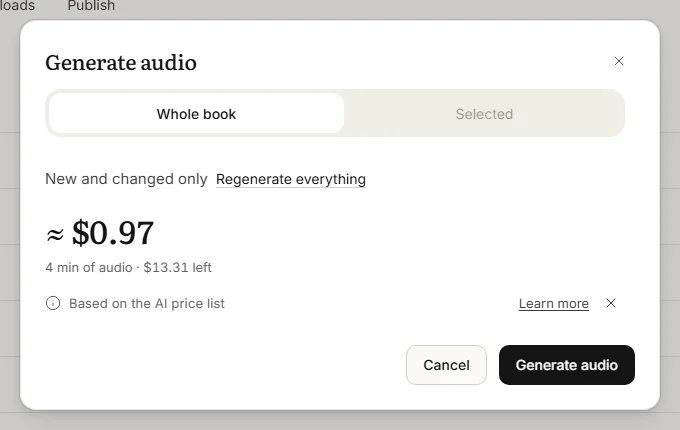
Choose the scope
Whole book, or the selection you made in the chapter list.
Check the price
An estimate in dollars and the length of audio it covers.
Confirm
The dialog closes and the chapters start working; you can leave the page.
New and changed only
By default only missing or changed chapters are generated. “Regenerate everything” replaces audio you already paid for.
What it costs
The dialog shows an estimate before anything starts; the final cost is written to Usage when the render finishes. See Balance and pricing.
While it runs
Each chapter shows progress and one status icon. A chapter turns done when its audio is ready.
One icon per chapter tells the state: waiting, working, done, needs check or failed.